THE RESULT YOU'RE WORKING TOWARD
Done means it works.
The visitor can read, navigate and act without clipped content or controls covering each other.
Practice project: One published service page01 / GET READY
Before you start.
- Platform / editor
- Your website editor and Google Search Console
- Access & plan
- Permission to edit the selected site. Search Console lessons require authorized property access. Indexing and ranking changes are not guaranteed.
- Starting point
- Complete the previous lesson or use an equivalent prepared demo project.
Keep a note of the exact account, project and version you use. Work with demo data and record the expected result before making changes. Never place passwords, verification codes or private customer records in your evidence.
02 / LEARN THE TOOL
Open the official walkthrough.
Use the publisher's instructions and available screenshots to locate the current controls. Then return here for the SETLY exercise and its result checks. These links open on the publisher's website.
Source credit belongs to the named publisher. These are external references, not SETLY recordings or a claim of affiliation. Screen names and plan availability can change.
03 / PUT IT INTO PRACTICE
Your task, step by step.
Use one labelled demo record or project so you can find your work again. Finish each action before continuing; if the screen differs, consult the matching official source rather than guessing.
- 01
Step 1
Open the page at a narrow width and on a phone where available. Start at the top and follow the normal visitor journey.
- 02
Step 2
Check line wrapping, menu access, form labels and button spacing. Look for horizontal overflow and fixed elements covering content.
- 03
Step 3
Use keyboard navigation where applicable and increase text size. Record the exact element that becomes hard to use.
- 04
Step 4
Correct one issue at a time and repeat the journey, including the primary contact or booking action.
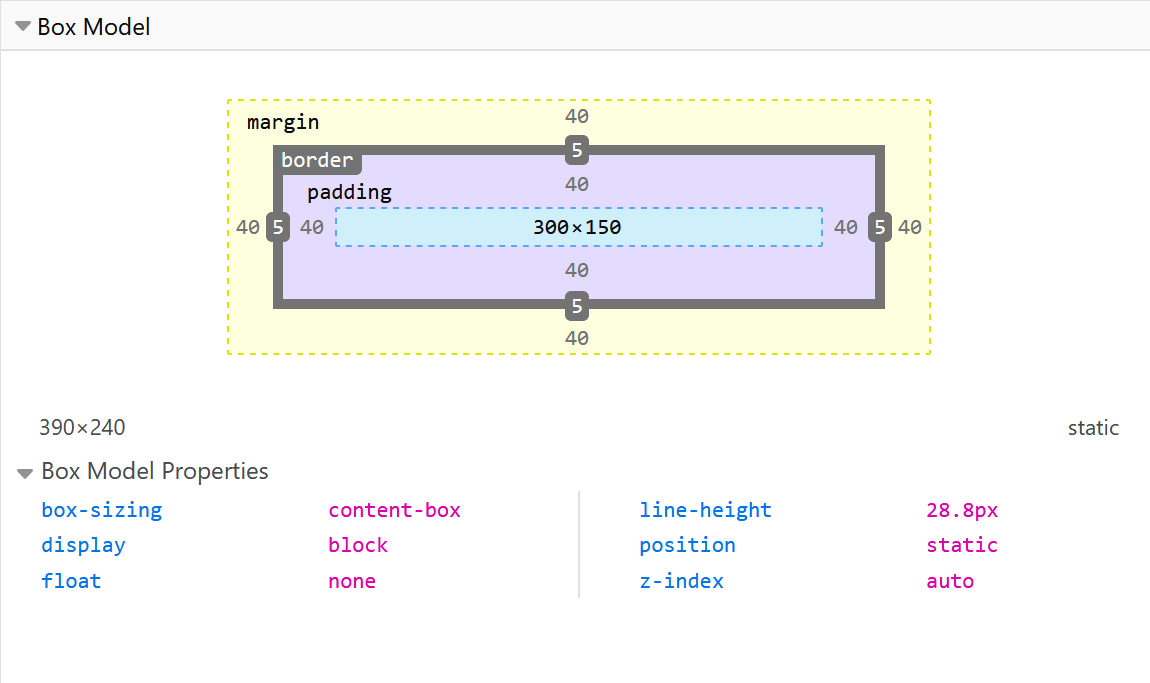
Inspect padding, border and margin when a layout overlaps or has unexplained spacing.
Source: Mozilla Contributors / MDN Web Docs. CC BY-SA 2.5 or later; unchanged.
04 / GET UNSTUCK
If something goes wrong.
Start with the likely cause
If a desktop fix creates a mobile overlap, inspect fixed widths and positioned elements before shrinking all text.
My screen is different from the guide
Check the product, editor, account role and selected project first. Open the credited official instructions for your version. Record the difference and pause any action whose effect you cannot verify.
The screen looks correct, but the result is missing
Inspect the saved record, published page or execution log that should prove the action. A preview, success message or draft is not always evidence that data was stored or a message was delivered. Retest with one unique demo value.
05 / PROVE THE RESULT
Check it before you call it done.
The visitor can read, navigate and act without clipped content or controls covering each other.
Keep useful evidence
Record the test date, project/version, expected result, observed result and a non-sensitive screenshot or record reference. Mark anything you did not test as untested. Your checkmarks do not certify an untested result.
Download the editable verification checklist ↓Guide status: original written practice exercise with credited external references. SETLY screen recording and independent learner reproduction are not yet complete.